Toolbar Features
A suite of tools available during gameplay - from annotation to replay sharing. All buttons appear in the toolbar above the board.
Toolbar overview
The toolbar sits between the board header and the board itself. Which buttons are visible depends on the current game state.
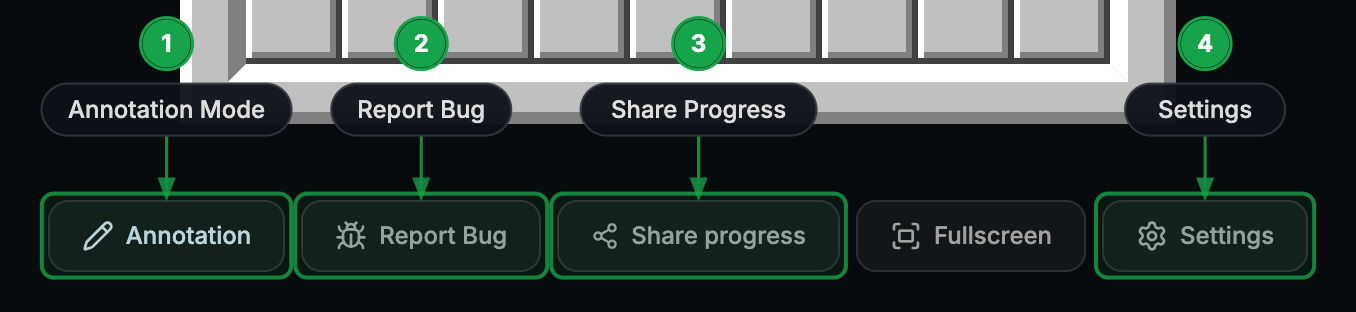
Annotation
Report Bug
Share Progress
Settings
Share Replay
Fullscreen
Annotation mode
Annotation mode lets you leave visual markers on cells to track your reasoning as you play. It's available on desktop only - the board must be in an active or finished game.
How to activate
Click the Annotation button in the toolbar. The button lights up green and a legend panel appears to the left of the board.
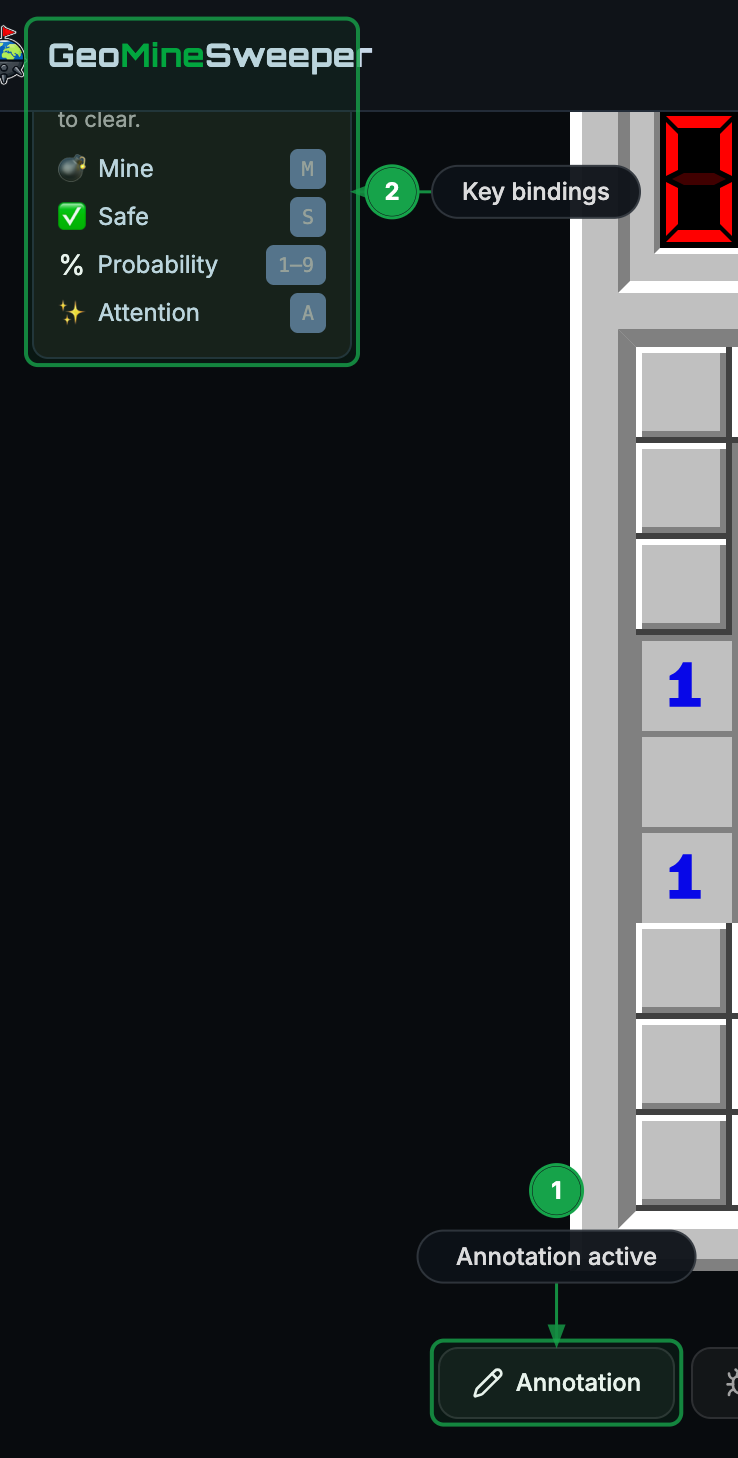
Annotation types
To annotate: hold the key over a cell. The annotation appears immediately. To clear: press the same key again over the annotated cell.
Settings
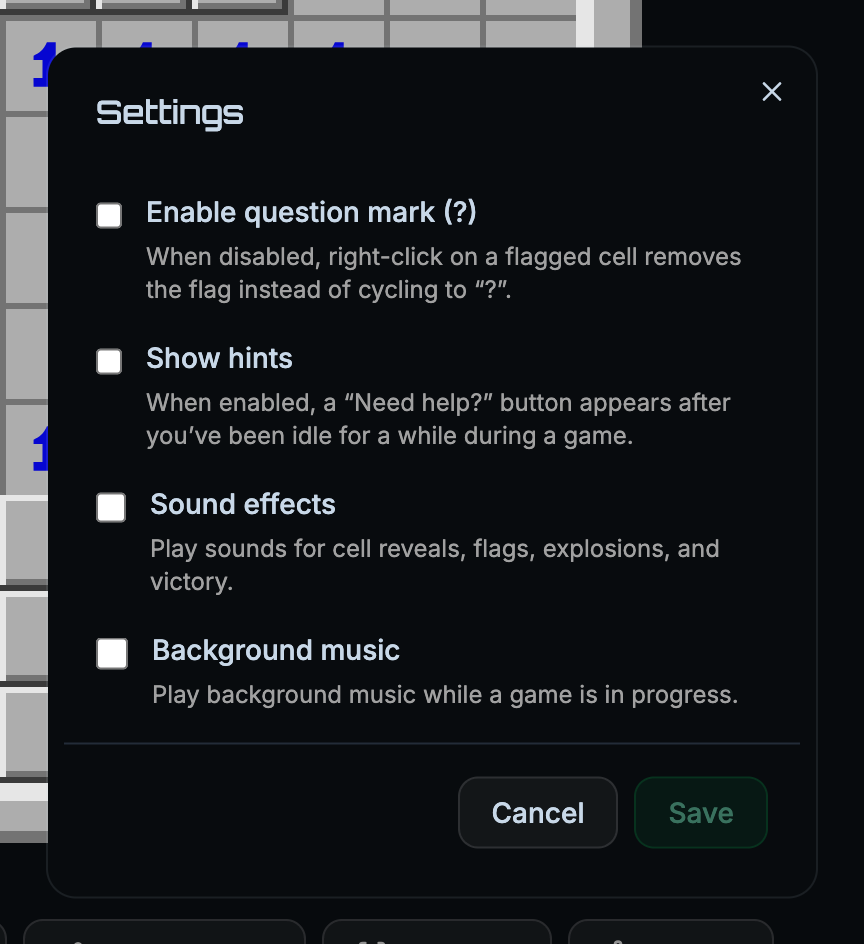
Open the Settings dialog to customise gameplay preferences. Changes take effect immediately - even mid-game.
Question marks
Right-clicking a flagged cell cycles it through flag → ? → empty instead of flag → empty. The "?" state is a visual reminder that a cell is uncertain.
Hints
When enabled, a "💡 Need help?" button appears in the toolbar after you've been idle for a while. Clicking it reveals a safe move.
Sound effects
Plays click, flag, and explosion sounds as you interact with the board.
Music
Background music during gameplay. Volume is independent of system settings.
Report a bug
If something goes wrong during a game - unexpected behaviour, a display glitch, or a server error - the bug report tool sends the full game snapshot to the team automatically.
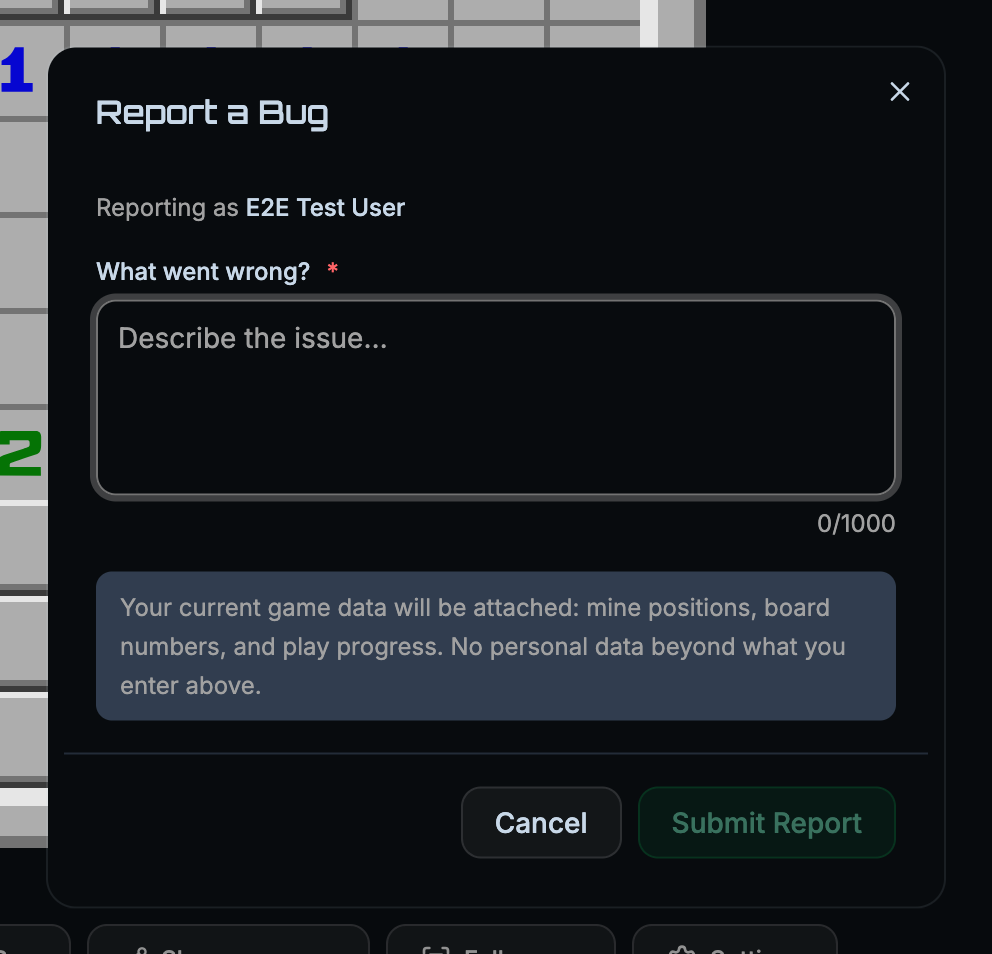
- Description - required. Briefly describe what went wrong.
- Guest name / email - optional. Only shown when you are not signed in. Lets the team follow up with you.
- The current game ID and board state are attached automatically - you do not need to copy them.
Share progress
Share a link to the current puzzle while it is still in progress. Anyone who opens the link will see the same board in its initial unsolved state - they will need to solve it themselves.
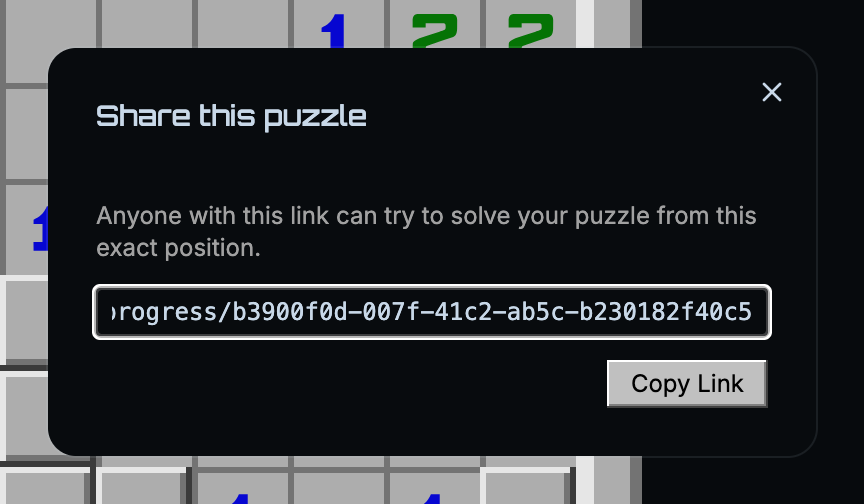
The link encodes the map and difficulty only - not your current reveal state or timer. Recipients start fresh.
Share replay
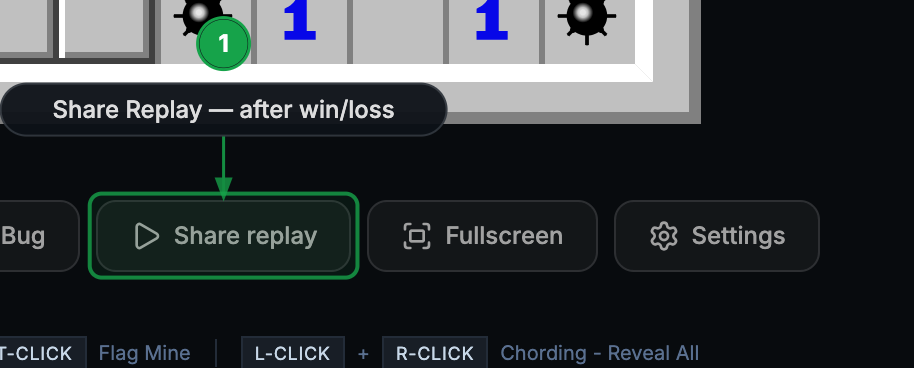
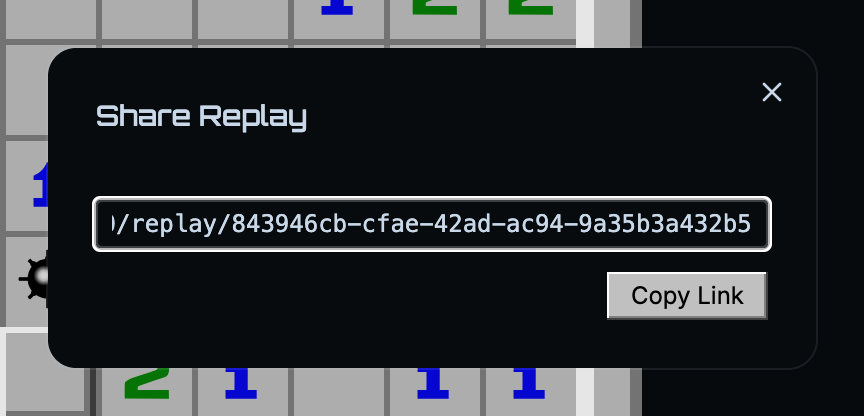
After a game ends - win or loss - the toolbar shows a Share replay button. This generates a permanent link to a full playback of your game, including every click and annotation.
Fullscreen
Available on geographic maps (not Classic) when a difficulty is selected. Expands the board to fill the entire browser window so you can focus purely on the map.
Press Esc or click the icon again to exit fullscreen mode.
💡 Hints
When hints are enabled in Settings, a 💡 Need help? button appears in the toolbar after a period of inactivity during gameplay. Clicking it reveals one safe cell the server has calculated for you.
- Rate-limited to one hint every 5 seconds per game.
- The hint is computed server-side and shown as a highlighted cell on the board.
- Enable or disable hints at any time via Settings.